
layouts
Split into two
Keep the scans you watch continuously in a primary layout and move the rest to a second one you switch to. Only the active layout consumes resources, and switching is fast.
install · configure · tune
The layout arrives with filters, columns and window positions written. Three things happen inside Takion, and one of them is the reason a correctly built scan can sit there showing nothing at all.
Steps one through four take a few minutes. Step five is a single pass through the six windows that need a checkbox group set.
Open the .tcb file in Takion. All 42 scans arrive tiled seven across by six down, each labelled with its prefix so you can identify it without opening a filter panel.
Open any scan's filter panel. In the Test Stock group on the left, Real should be ticked and Test clear. That is what points the scan at every listed symbol instead of a symbol basket.
If one window is empty while its neighbours show rows, check this before touching anything else. A scan with no basket and Real unchecked has nothing to scan, so every filter you set is being applied to an empty universe.
Click the header of the column each scan sorts on — once for descending, twice for ascending. The specification table lists the intended sort for all 42. Sort is a click rather than a stored setting, so it does not survive loading a fresh layout.
Once Real and the sorts are set, save the layout. Everything past this point is refinement rather than repair.
Scans 14 and 15 — Security Type, ETF only. Scans 30, 31 and 32 — Security Type, Common only. Scan 38 — Exchange, NSDQ only. On scan 01, uncheck OTCB under Exchange if you would rather not see over-the-counter names.
Test Stock sits in the left column of the filter panel, below Exchange and above Security Type. It is a small control with an outsized effect.
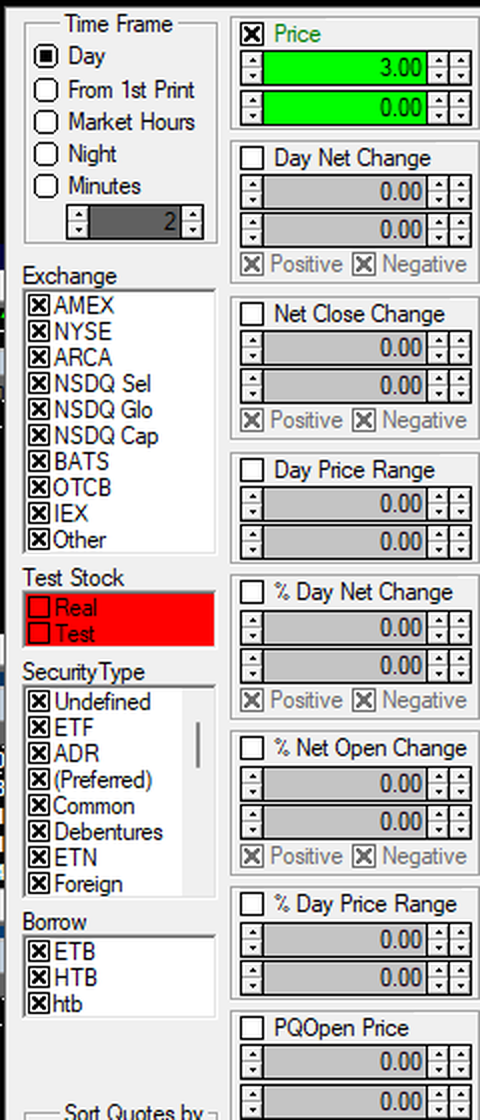
Day is the default. The six rolling scans — tick surge, tick repeat, tick divergence, velocity, bid accumulation and ask distribution — need Minutes set to 5. If a tick scan is returning day-long totals, this is why.
Both are checkbox groups rather than numeric filters, which is why they cannot be written into the layout file and have to be set once by hand.
ETB, HTB and htb are separate checkboxes. Scans 22 and 40 want HTB checked and the others clear.
Takion's servers do the feed processing. Your machine does the filtering, sorting and repainting — 42 times over, on every update. That is where the load sits, and it is a CPU problem rather than a bandwidth one.
Keep the scans you watch continuously in a primary layout and move the rest to a second one you switch to. Only the active layout consumes resources, and switching is fast.
Rolling-window scans keep per-symbol tick buffers across the whole universe. They cost far more than day-timeframe scans. If memory climbs, close these first and watch what changes.
A loose price filter and no volume minimum returns thousands of rows, each tracked and re-sorted continuously. A meaningful floor cuts the working set sharply without losing anything tradeable.
Every visible cell is repainted on every update. Two hundred rows across eight columns is sixteen hundred cells refreshing continuously. Show the symbol, the price, the sort field and one or two for context.
The data stream is tens of megabits at most, so a faster connection changes nothing. Sustained single-core speed and enough cores to run the sort cycles in parallel is what removes the stalls.
Packet loss and jitter on a residential circuit cause stutter that looks like lag. A business circuit with an SLA beats a faster consumer line, and wired always beats wireless.
The link menu carries named integrations for eSignal, RealTick, FsCharts, AdvancedGet, Bloomberg, TradingView, Nasdaq, TC2000, MultiCharts, ThinkOrSwim and TradeStation.
They divide into two groups and the difference is worth understanding. Mature desktop platforms with published link interfaces — eSignal, RealTick, Bloomberg, MultiCharts, TradeStation — receive symbols by message passing, so focus never leaves Takion and the update is effectively instant. Applications without a published interface are driven by writing into their symbol field directly, which requires activating their window. That is what produces both the delay and the focus jumping away.